Gumps & dialog design
Inspect supported native gumps, import/export artwork and design Sphere dialogs with a visual preview and generated script.
A WALK THROUGH THE WORKSHOP
See where the tools meet, what each workflow produces and what you can check before it reaches your shard.
NEW IN 0.31 / REUSABLE SCRIPT SETTINGS
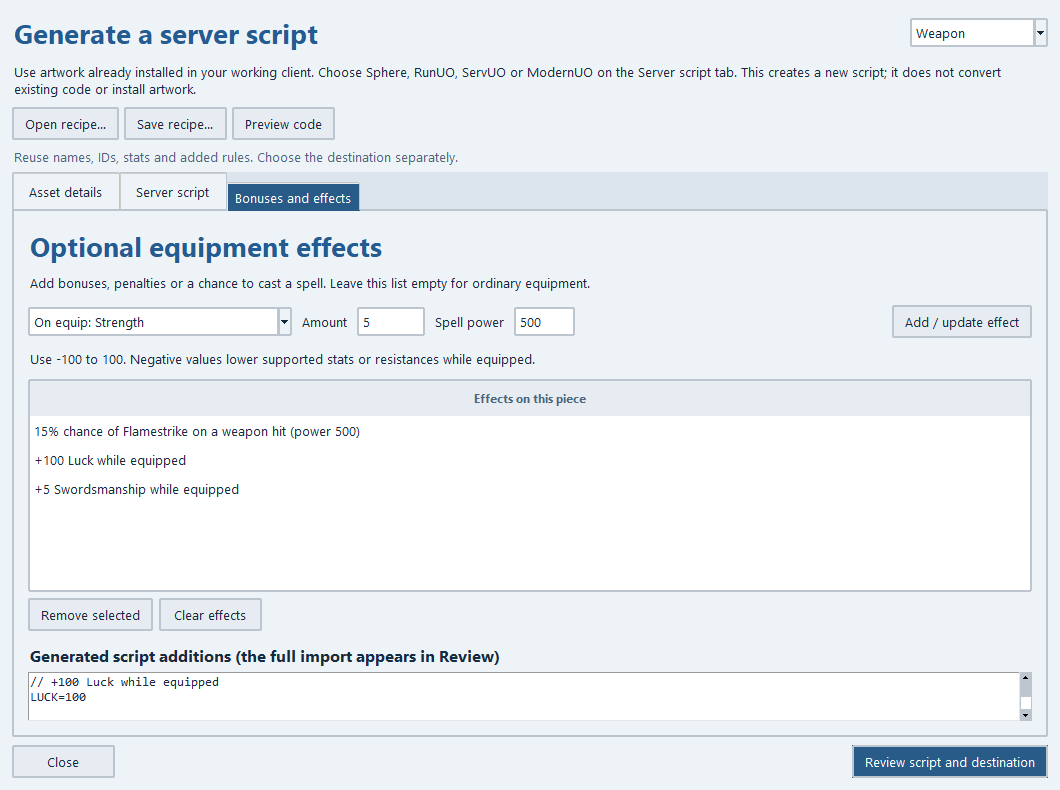
In Generate server script, choose Save recipe to keep the asset type, target, stats, equipment effects and creature settings. Open recipe restores those choices. Recipes contain settings only; each project keeps its own destinations.
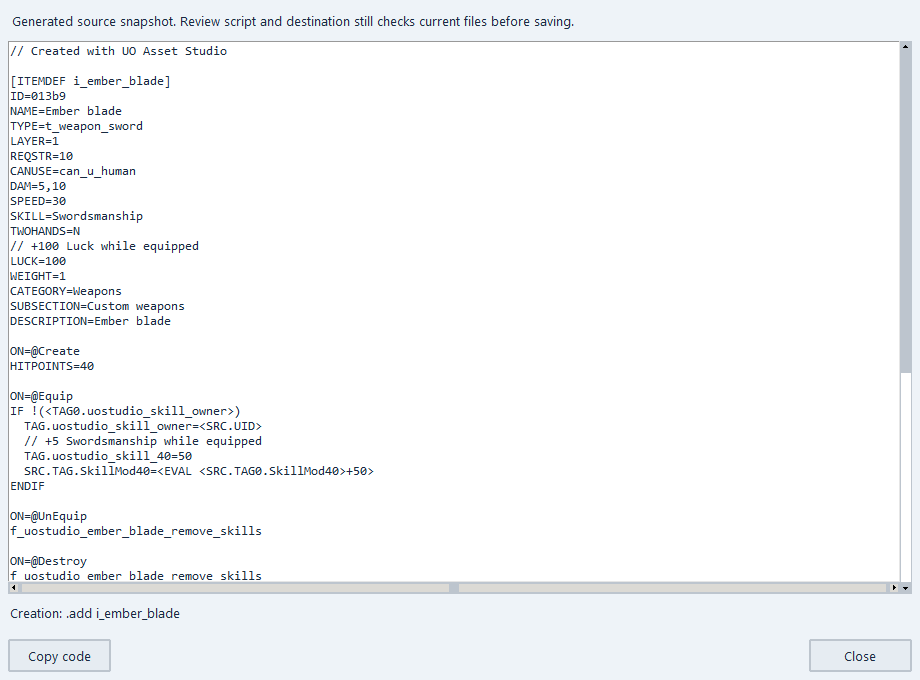
Preview code shows the exact generated source and creation commands before the save review. It supports Sphere, RunUO, ServUO and the ModernUO preview target.
Rideable object mounts: double-click the inventory item in your backpack to ride. Dismount restores the same item. No taming or feeding is involved. Sphere’s temporary backing creature is cleaned up; C# targets use native EtherealMount behaviour.
Existing installed scripts are not automatically converted. Related-content removal recognizes unmodified generated mount helpers and retains protection for external references or customized code.
NEW IN 0.31 / TERRAIN YOU CAN INSPECT
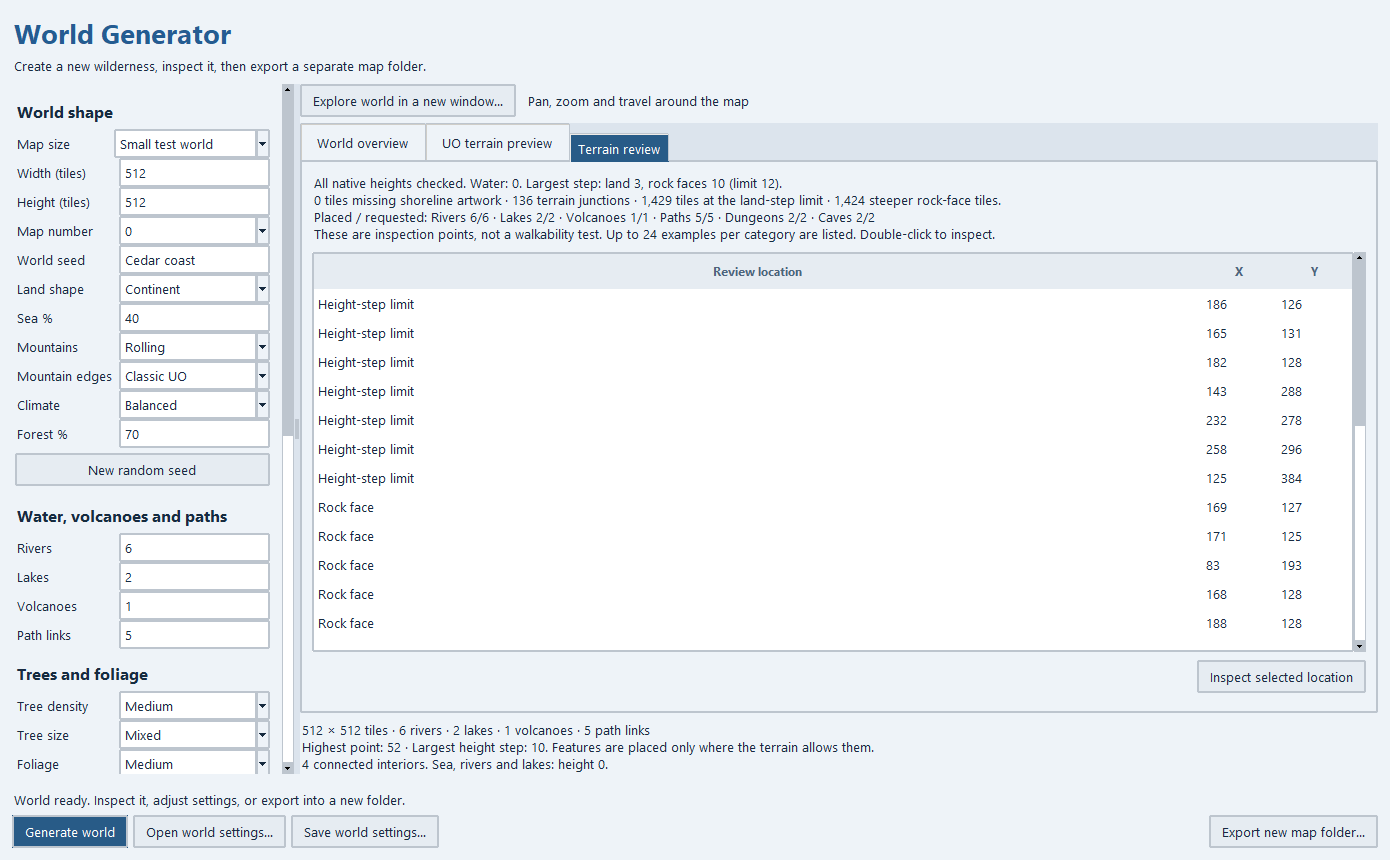
Mountain edges → Classic UO adds bounded rock faces and uneven ridges, while Soft slopes keeps the earlier gentle style. Ordinary ground retains its original slope limits. Seas, rivers and lakes stay level at zero.
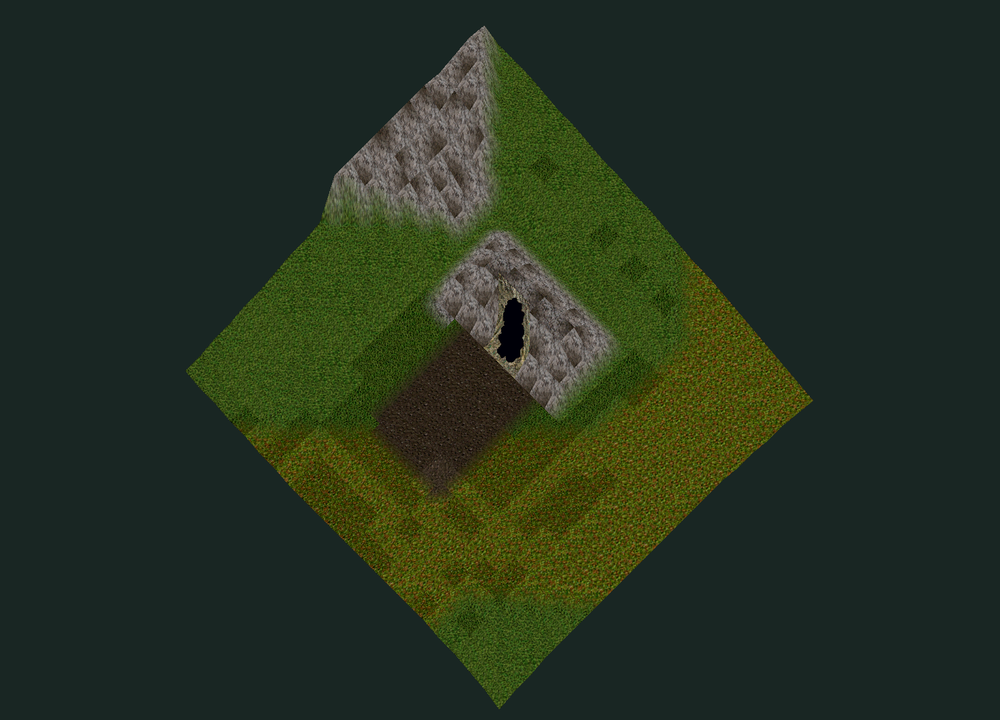
Raised ground uses the client’s terrain textures where available. The preview approximates native lighting; inspect the exported world in a separate client/server copy before deployment.
Switch the overview between Biomes, Height, Slope and Shoreline / blends. Terrain review lists counts and inspection coordinates; double-click a row to examine its native artwork.
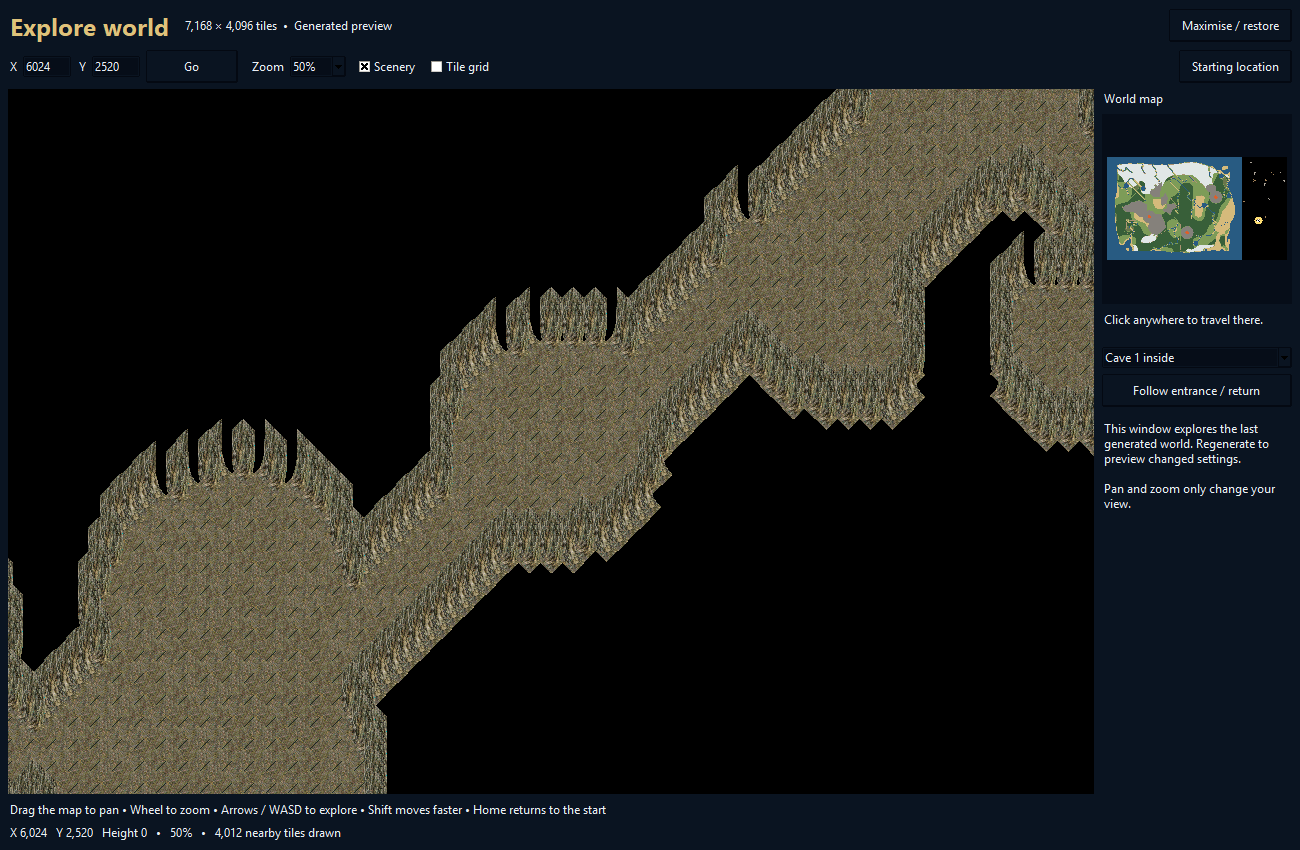
Paths seek any reachable earlier clearing and avoid diagonal gaps at blocked shores. Native black cave-mouth pieces form the outdoor entrances, with a clear approach and a trigger leading to the separate cave interior.
NEW IN 0.30 / FIND YOUR WORKFLOW
Home offers creature, armor-set, tile, script, house and world starting points. The sidebar keeps every main editor within reach. Press Ctrl+K for the searchable tool library; Ctrl+H returns Home.
Definitions and Asset workspace start with the definition browser. Sphere scripts starts with Script files. Other views use the available width, with switches to bring either side panel back when useful.
Save All and Pending changes stay visible. The adjacent menu holds separate script/game-file saves and recovery. Manage groups profile and path controls.
Appearance provides ten themes, Standard or Larger text and a panel-layout reset. Tile imports separate their larger artwork preview from properties and animation. Existing reviews, queues and recovery remain part of the workflow.
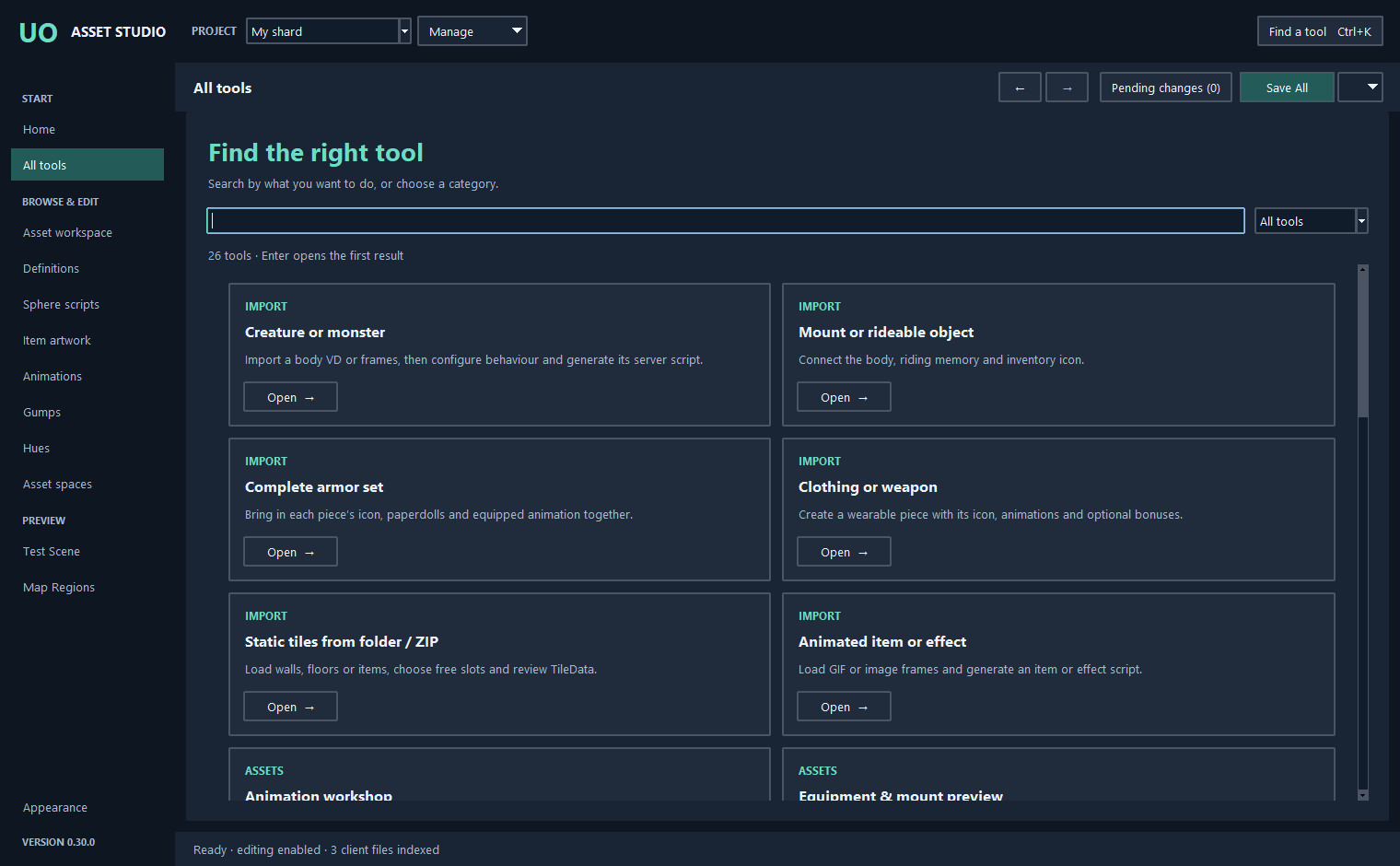
NEW IN 0.30 / SPHERE REGIONS
Open Map Regions from the sidebar. Search existing AREADEF and ROOMDEF scripts, select a region on the map, and use Find selected to inspect all of its rectangles. Draw another rectangle for an irregular shape, move a boundary or enter precise coordinates.
The Rules tab covers guarded and safe regions, magic and harmful spells, recall in/out, gates, teleport, PvP, building, weather, announcements, logout and decay. Custom rule expressions stay intact and are marked for script editing when Studio cannot resolve them.
Load a MUL or legacy map UOP for a read-only terrain background. Version 0.30.1 fixes map0LegacyMUL.uop loading and detects standard facet sizes automatically, including both Britannia widths. Custom maps keep manual dimensions; cancelling keeps your existing preview scale. Mouse-wheel zoom and middle-drag pan help place boundaries. The overview does not render statics or simulate server behaviour.
Additions go under scripts/regions and register in spheretables.scp. Changes use the existing queue, file-access checks, conflict detection and backup/recovery flow. Retain a covering world region, stop Sphere before saving and verify rules after restarting.
This editor supports Sphere regions. It does not edit RunUO, ServUO or ModernUO region formats.
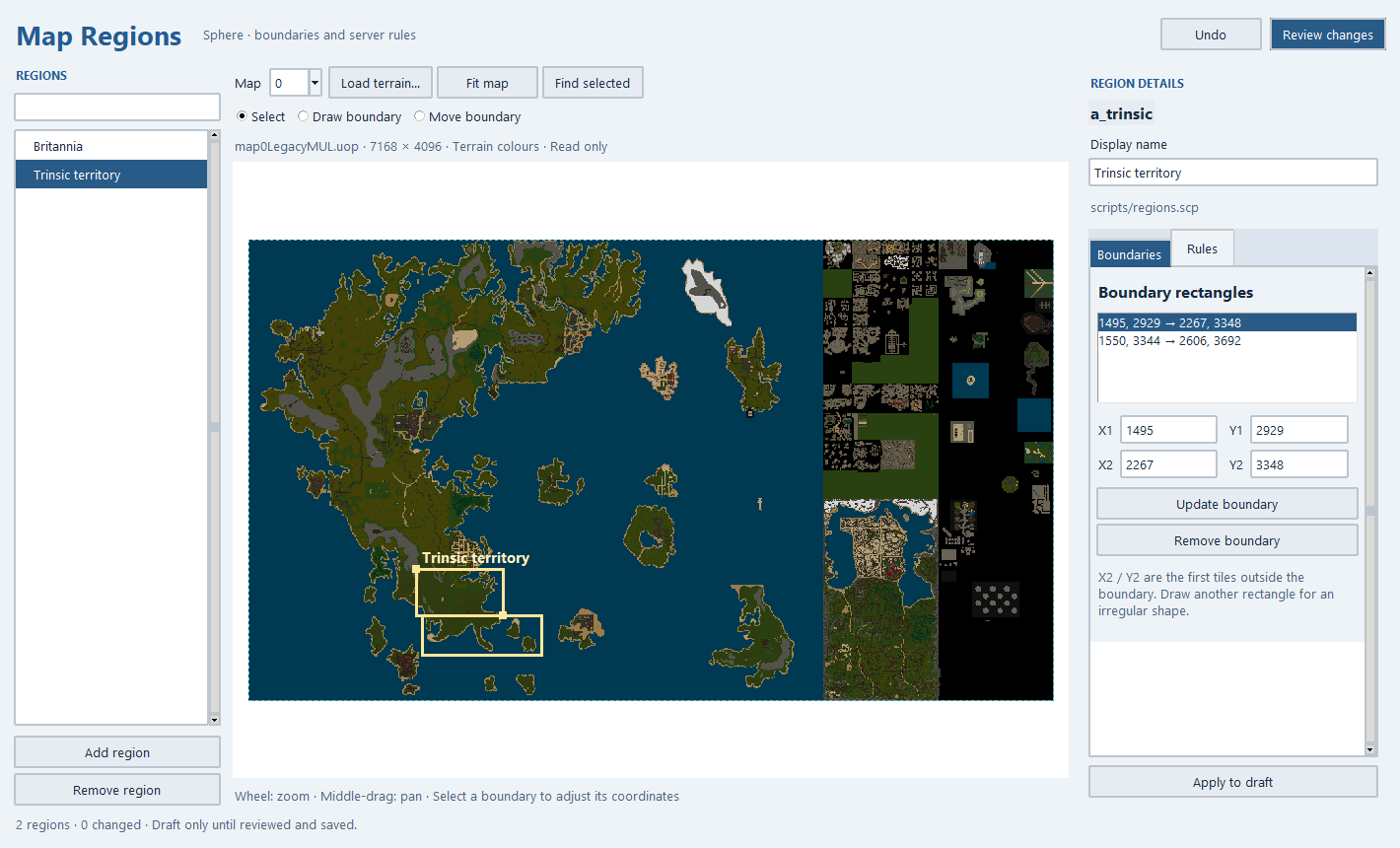
SPHERE / RUNUO / SERVUO / MODERNUO PREVIEW
Choose Script target on the Server script tab. Sphere produces .scp definitions; official RunUO 2.x, ServUO pub57 and the ModernUO preview produce C# classes. Complete armor sets share one target, including whole-folder imports.
Configure spells, healing, taming, attack effects and temporary summons, or native equipment bonuses and weapon hit effects. For existing artwork, open Workspace → Workshops → Generate server script.
The C# targets share a language but have different APIs. Review the source, destination and GM creation command before saving.
Targets official ModernUO 0.15.6.198 with Constructible classes and native generated serialization. Choose the server checkout, its UOContent folder or a separate export folder. Studio locates Projects/UOContent/Scripts and checks class names across the content project.
All 61 ModernUO examples passed syntax checks and were compared with the official source. This is not a full ModernUO build: compile the generated source and test it on your shard before use. Preserve the server-generated serialization migrations.
Existing definition editing, sound-link editing, removal, house/deed and world entrance scripts remain Sphere workflows. Arbitrary script conversion and C# content-pack remapping are not included. Test Scene previews visuals; it does not execute server gameplay.
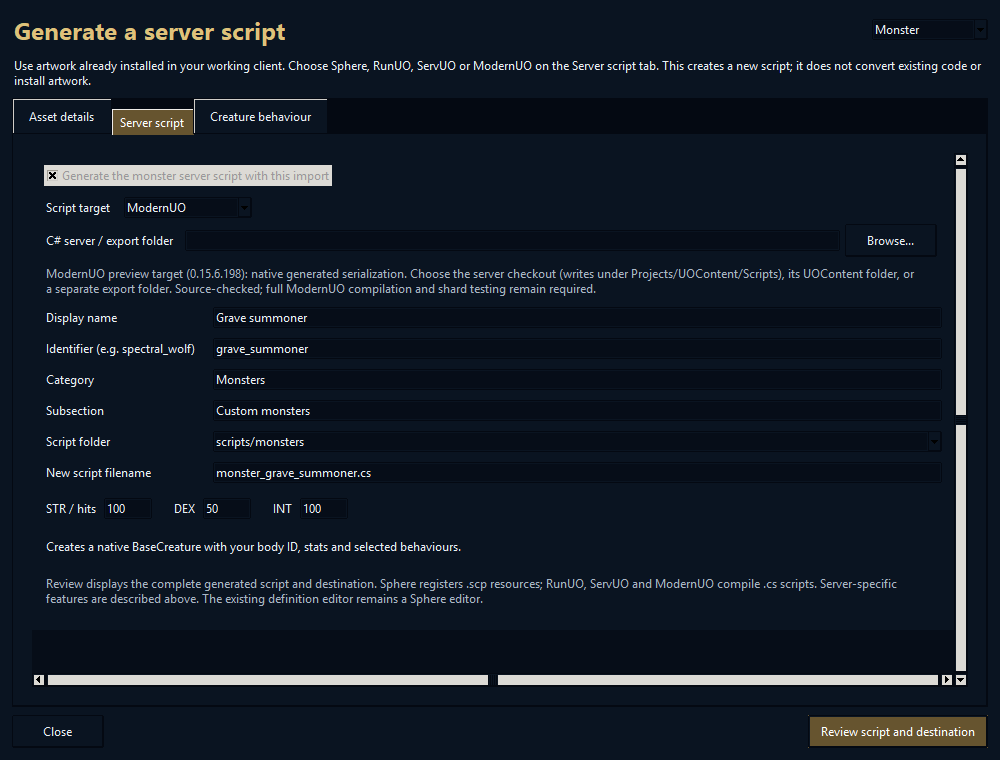
NEW / FOLDER AND ZIP IMPORT
Open Studio tools → Import static tiles (folder / ZIP), or use Open folder / Open ZIP in the item artwork importer. Choose whether to include subfolders, then browse the naturally sorted PNG/BMP previews.
Import up to 256 static walls, floors and items per batch. Images can be 1–512 pixels per dimension, within the documented file and total-size limits. Ground terrain tiles are outside this importer.
Use automatic free-slot placement, reorder the rows, or deliberately read IDs from filenames. Subfolder labels remain visible; duplicate destination IDs are rejected.
Set names, weight, height and TileData flags. Settings apply to the batch, so separate walls and floors when they need different collision or surface properties. The importer does not infer those properties from the image.
ZIPs are read without extraction. Invalid images, unsafe entries, duplicates or password protection stop the load without replacing the previous selection. Game files change only after the existing review and save step; MUL and UOP artwork are supported.
NEW / MONSTERS AND ANIMAL MOUNTS
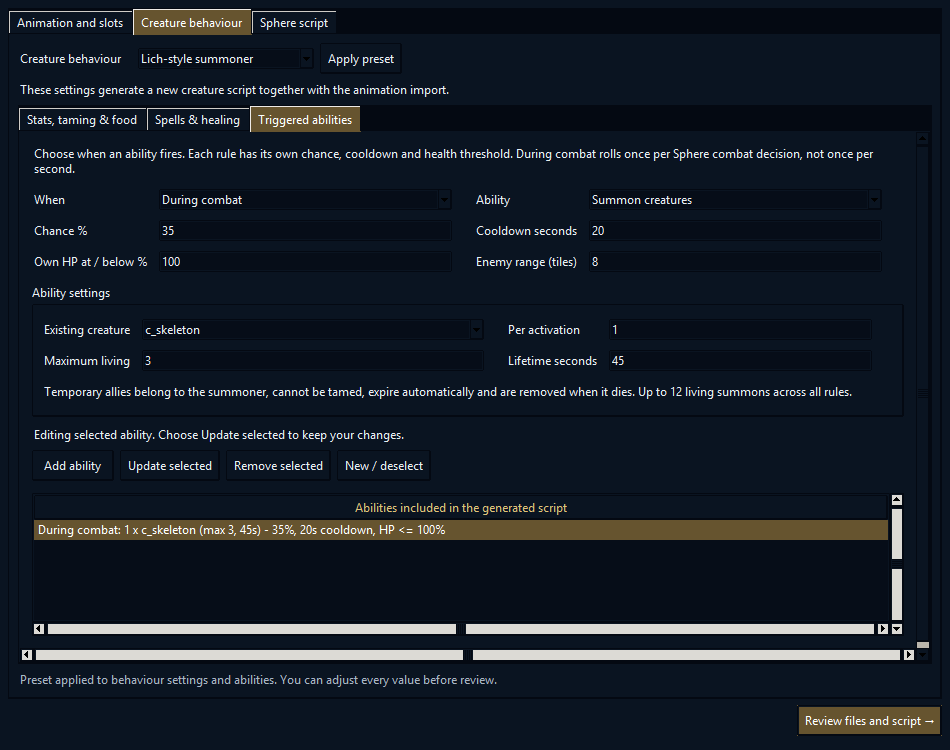
Open Import + script → Monster or Mount → Creature behaviour. Choose Basic melee, Tameable animal, Armored fighter, Spellcaster, Self-healing fighter, Poisonous creature, Dragon-style pet or Lich-style summoner, then adjust the details.
Set combat skills, damage, armor and resistances. Choose whether it can be tamed, its taming requirement, follower slots and diet. Pick its normal spell list, including healing and cure. Rideable objects keep their separate no-taming/no-feeding behaviour.
Add instant spell effects, fixed self-healing, custom attack visuals with optional damage and sound, temporary summons, or a creature-compatible Sphere function. Trigger during combat, on a landed hit or when hurt, with a percentage chance, cooldown, health threshold and range.
Choose the creature to summon, how many appear, the living limit and their lifetime. Summons expire and are removed when their summoner dies or is deleted. Review the complete generated script before saving. Native spell choice and gameplay still need shard testing; Test Scene remains a visual preview.
01 / THE WORKFLOW
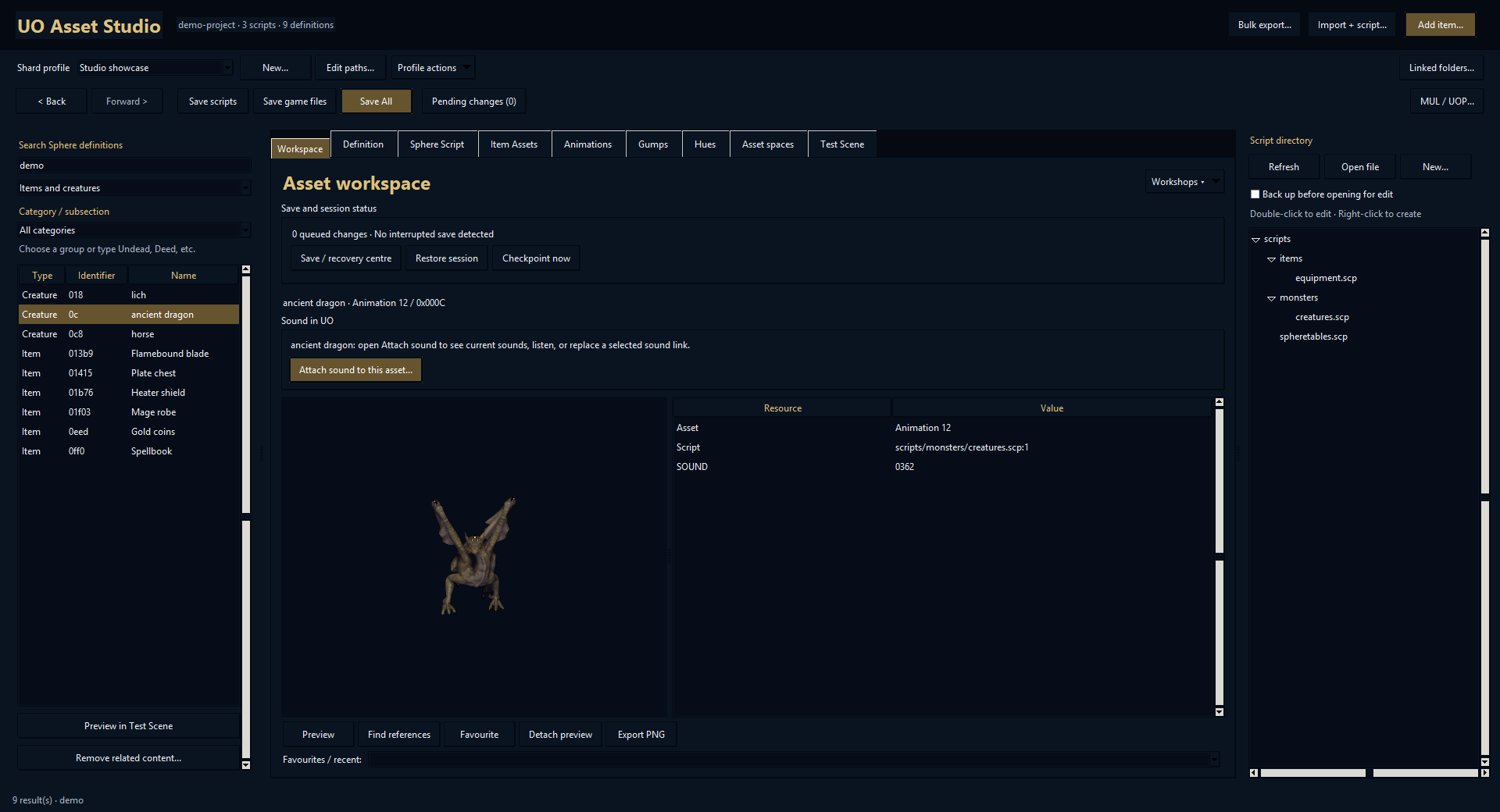
Link a Sphere script folder and UO game-data folder in a shard profile. The definition list, asset preview, references and script directory stay together, so you can move from a creature to its animation or from an item to its artwork.
The Workspace follows the selected asset and gives you access to related resources, sound attachment, favorites, recent assets and the specialist workshops.
Ten themes change the interface colors without recoloring your artwork.
02 / THE WORKFLOW
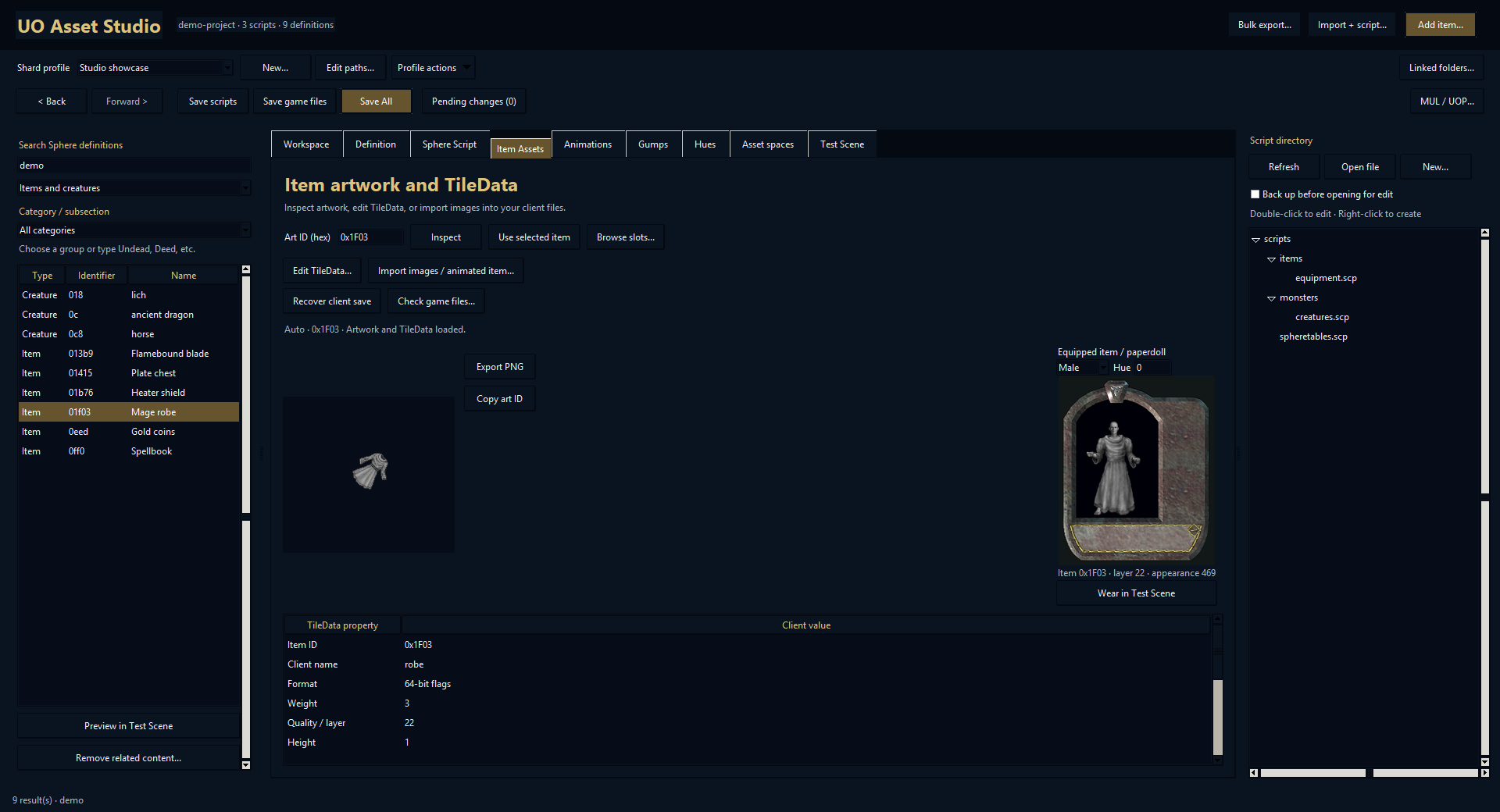
A wearable needs more than the ground icon. The import workflow links the icon, TileData equipment animation ID, a human/equipment VD and male/female paperdoll images. You can import a new appearance or reuse one already in your client data.
Check the 35-action equipment coverage, including movement and riding, and review the applicable weapon attack. The paperdoll viewer and worn-model Test Scene answer different questions: how the piece sits in the character panel, and how it looks in motion.
Choose a prepared set folder in the whole-folder importer to add the pieces together, including their animations, inventory icons and male/female paperdolls. Review the pieces, find available destinations and generate their Sphere, RunUO or ServUO item scripts as part of the same linked change.
Add stat changes, Luck, resistances or a skill bonus. For weapons, choose a spell and hit percentage. Effects can be copied to all set pieces; those bonuses stack per equipped piece rather than waiting for a full set.
03 / THE WORKFLOW
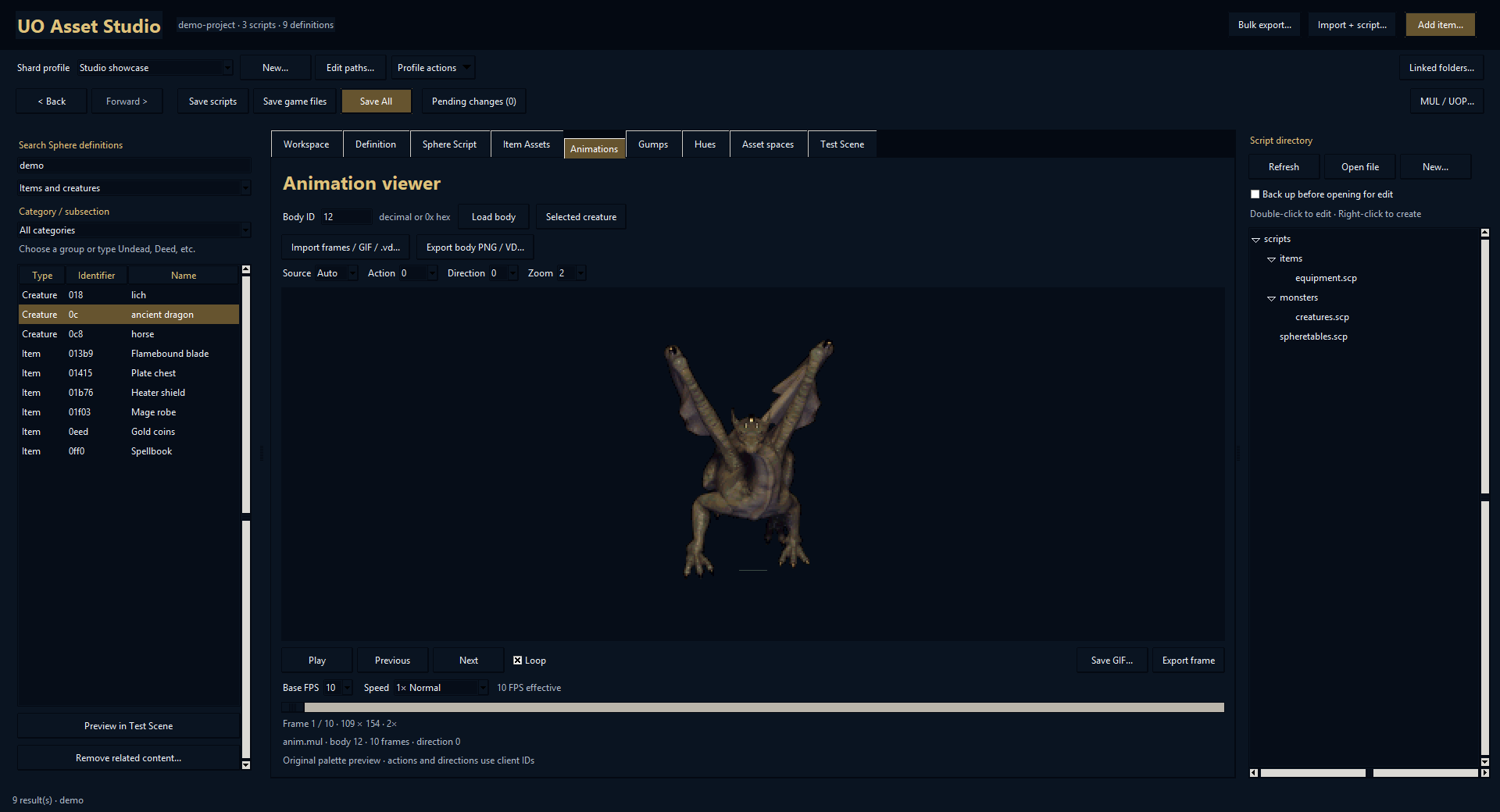
Choose a compatible monster VD, preview its animation and select a destination body. Studio prepares the creature and generates its selected server script for you. Check the action/direction coverage and review the result before saving. Mount preparation also brings the rider relationship and shrink icon into the same workflow.
For vehicles and object-like mounts, choose a rideable object without animal taming or feeding. Preview the rider and adjust the visible relationship in Test Scene.
Add effect artwork or supported animated sequences through a guided importer. Studio prepares the native assets and generates the associated Sphere definition/function or C# item/effect class. Preview the effect, choose available space and review its artwork and script together.
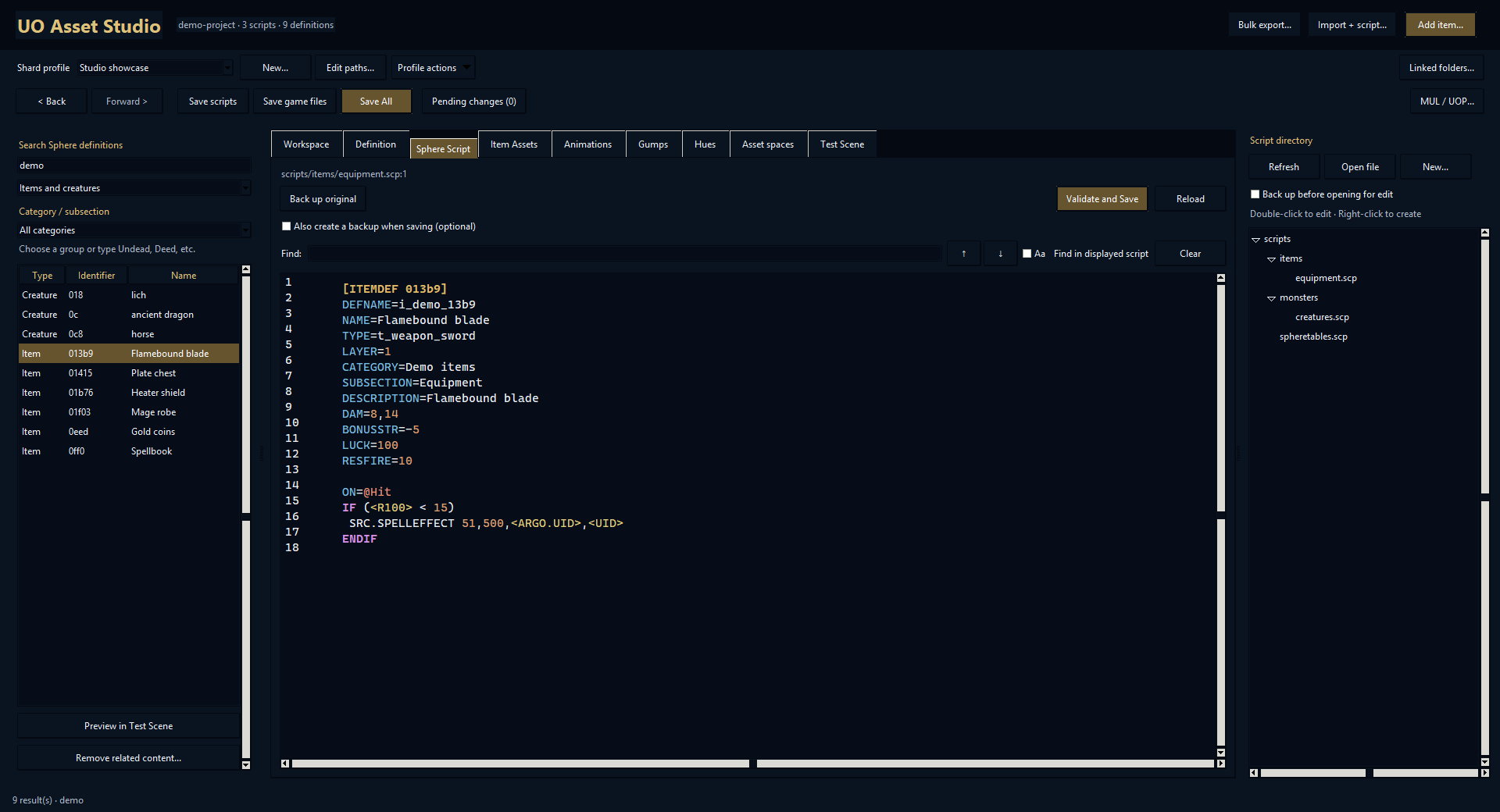
Sphere scripts stay visible. The editor supports source editing, reference lookup and related-content removal with an explicit review of what will be affected. Runtime script behavior still belongs to the server.
04 / THE WORKFLOW
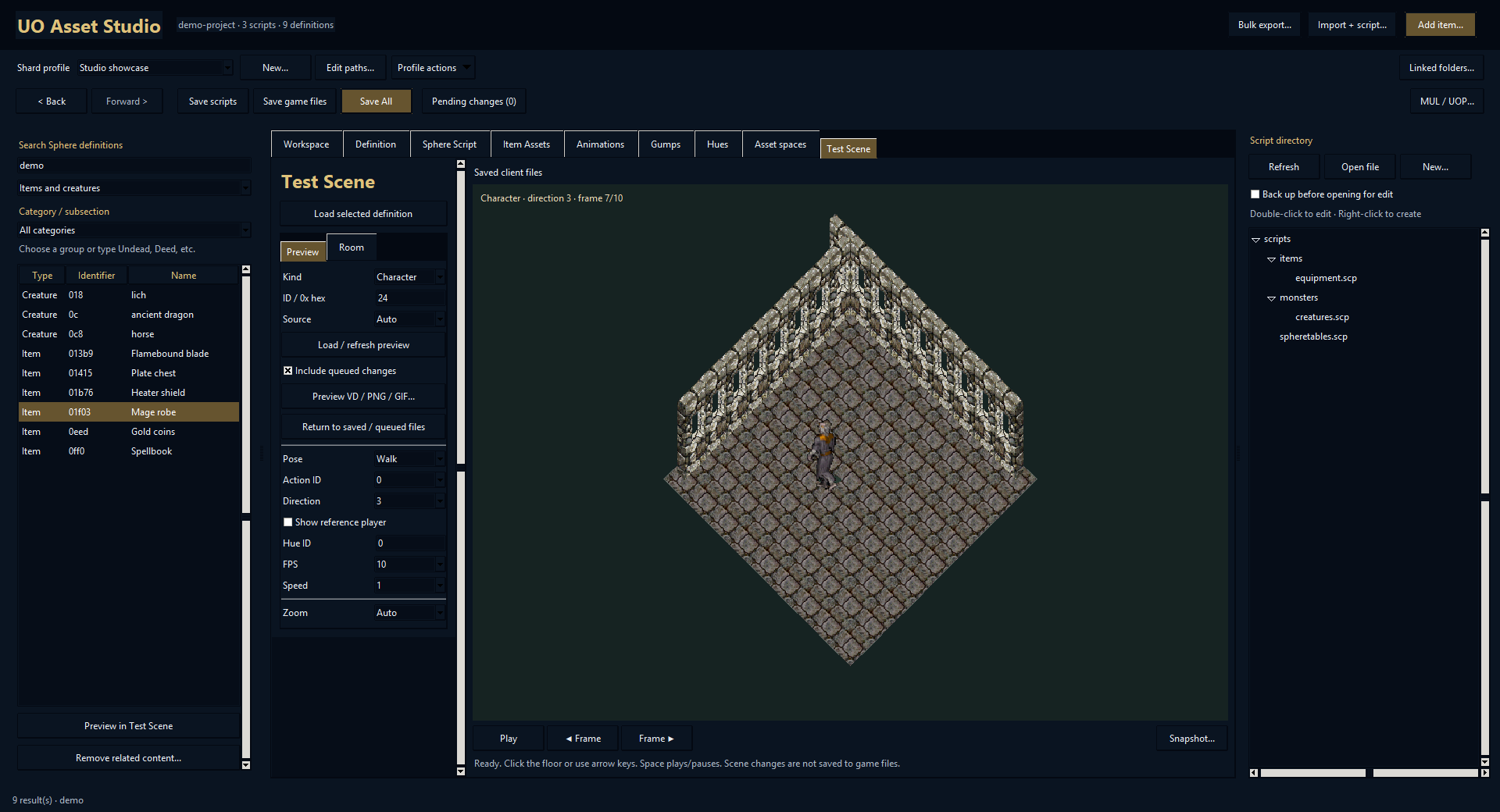
Send a selected definition or an asset from its context menu straight to Test Scene. Load characters, mounts, equipment, effects and items, or preview an external VD, PNG or GIF. Queued changes can be included before saving.
Play or step through frames, choose an action and facing, compare lighting and hue, and inspect a mounted rider. Put selected items into the room without replacing the moving character.
Move around the floor, place test walls and objects, swap floor/wall artwork and take a snapshot. This makes it easier to catch an oversized icon, an unexpected direction or a poor rider position.
This is an in-app visual test environment. It does not execute Sphere combat, AI, skills or spells, and final gameplay still needs checking on the target shard.
05 / THE WORKFLOW
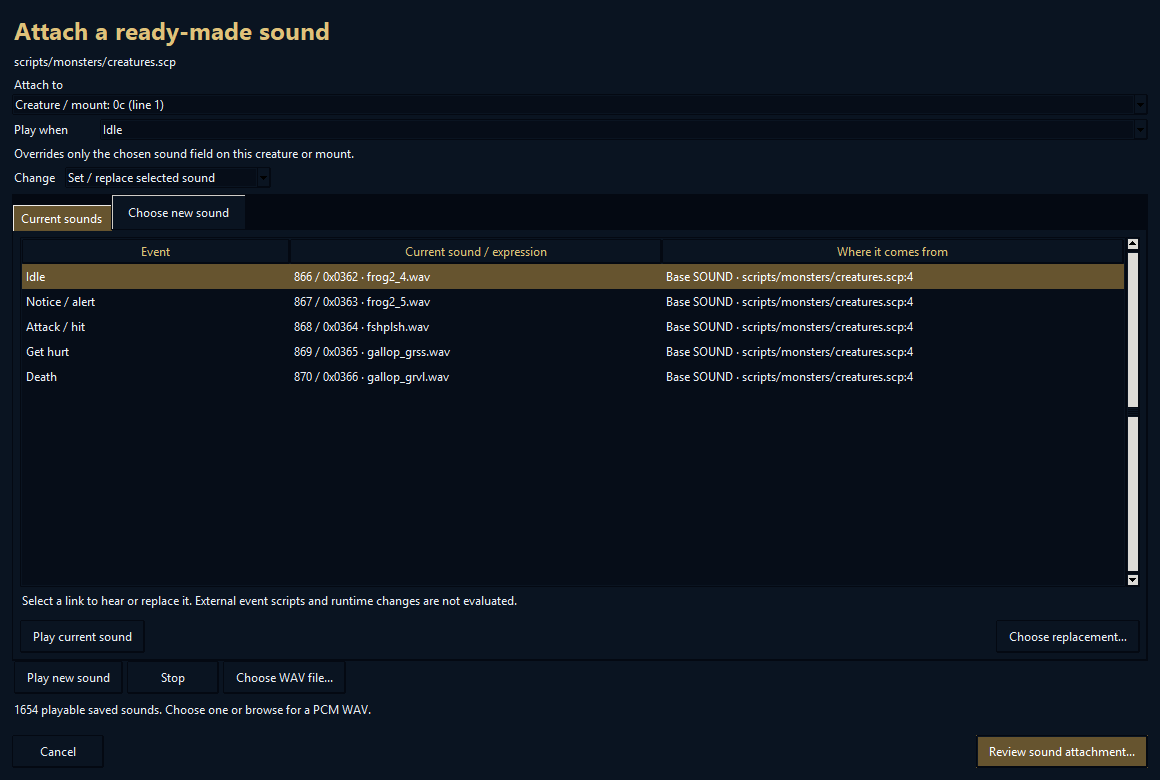
From the Asset Workspace, open Attach sound to this asset. The current-sounds view exposes the associations Studio can resolve, including inherited creature sounds and supported direct SOUND commands.
Audition a current sound, select the association to replace and choose an existing sound or import a ready-made WAV. Review both the client audio and the script change together.
Assigning a newly imported sound can use a free slot and change the selected link while leaving the old sound available to other assets. The Sound workshop also supports an explicit replacement of a selected sound record.
Computed sound IDs and arbitrary event/function chains cannot always be resolved statically. The interface identifies what it can inspect; it does not run a live server to discover hidden behavior.
06 / THE WORKFLOW
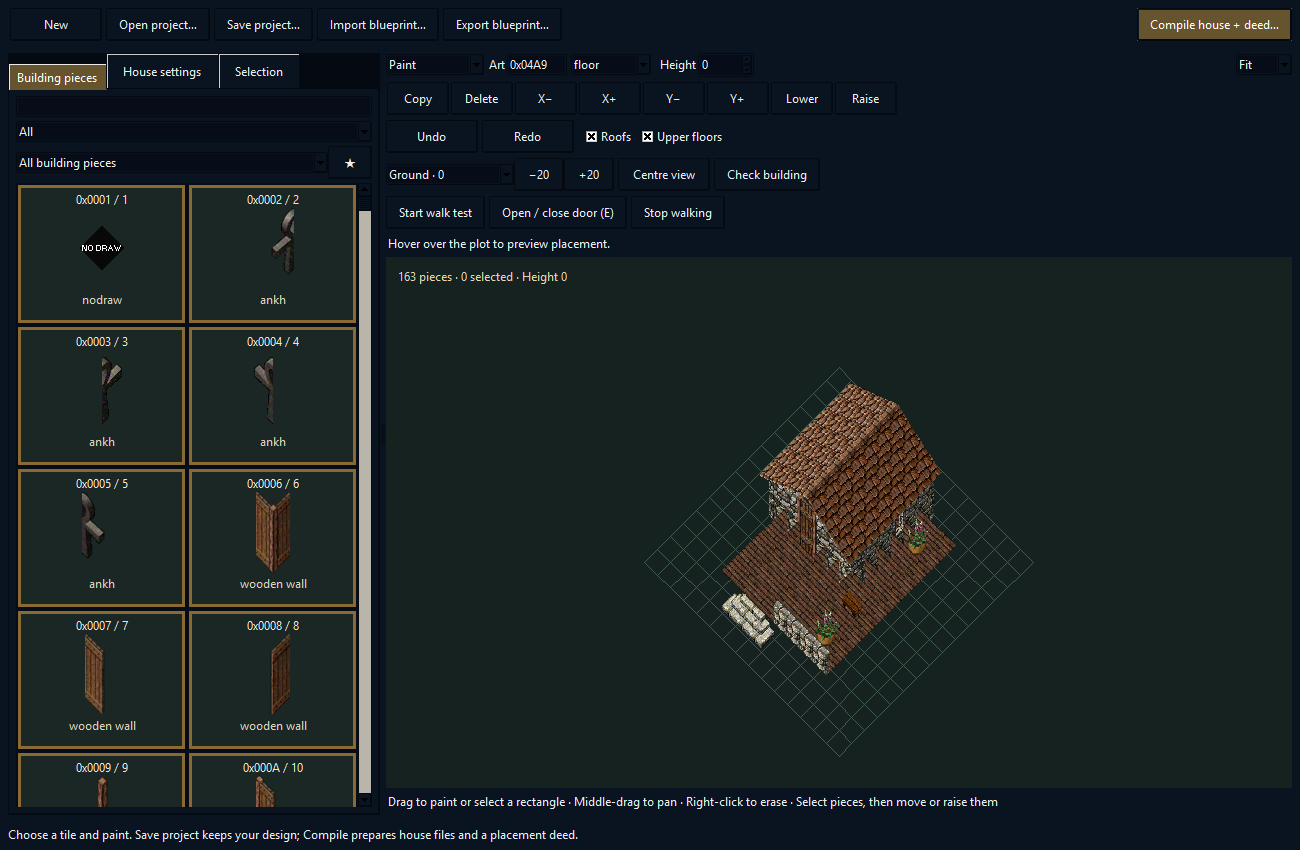
House Builder is a visual isometric editor using your client’s existing building pieces. Paint floors and walls, draw lines or perimeters, add roofs and decorations, select groups, copy them and adjust their position or height.
Use levels and visibility controls to inspect the structure. Walk preview and house checks help find missing floors, blocked routes and required components.
Save an editable house project or import/export a blueprint. Compile house + deed prepares a reviewed native multi and Sphere house/deed script. A compiled project remembers its binding for later updates.
Native housing still depends on the target client/server formats and rules. The project workflow keeps that compilation separate from simply saving your design.
IMPROVED IN 0.29 / WORLD GENERATOR
Generator version 2 smooths small biome flecks and boundary spurs, routes rivers with distance-aware drainage, and spaces trees according to canopy size. Trunk and canopy pieces remain paired.
Find area jumps to coast, forest, desert, snow, mountain, volcano or path locations. Changed settings mark the current preview as outdated and require regeneration before export.
Four varied test worlds and a full 7168 × 4096 Britannia export were checked. The full-size export kept water at height zero and its chosen three-level maximum adjacent terrain step; the audit client had no missing shoreline-art matches.
Export reports identify missing shoreline pieces when a client lacks them. Older saved world settings use the new generator when reopened, so keep previous map exports if you need their exact layout. Regions, spawns and final client/server checks remain separate.
07 / THE WORKFLOW
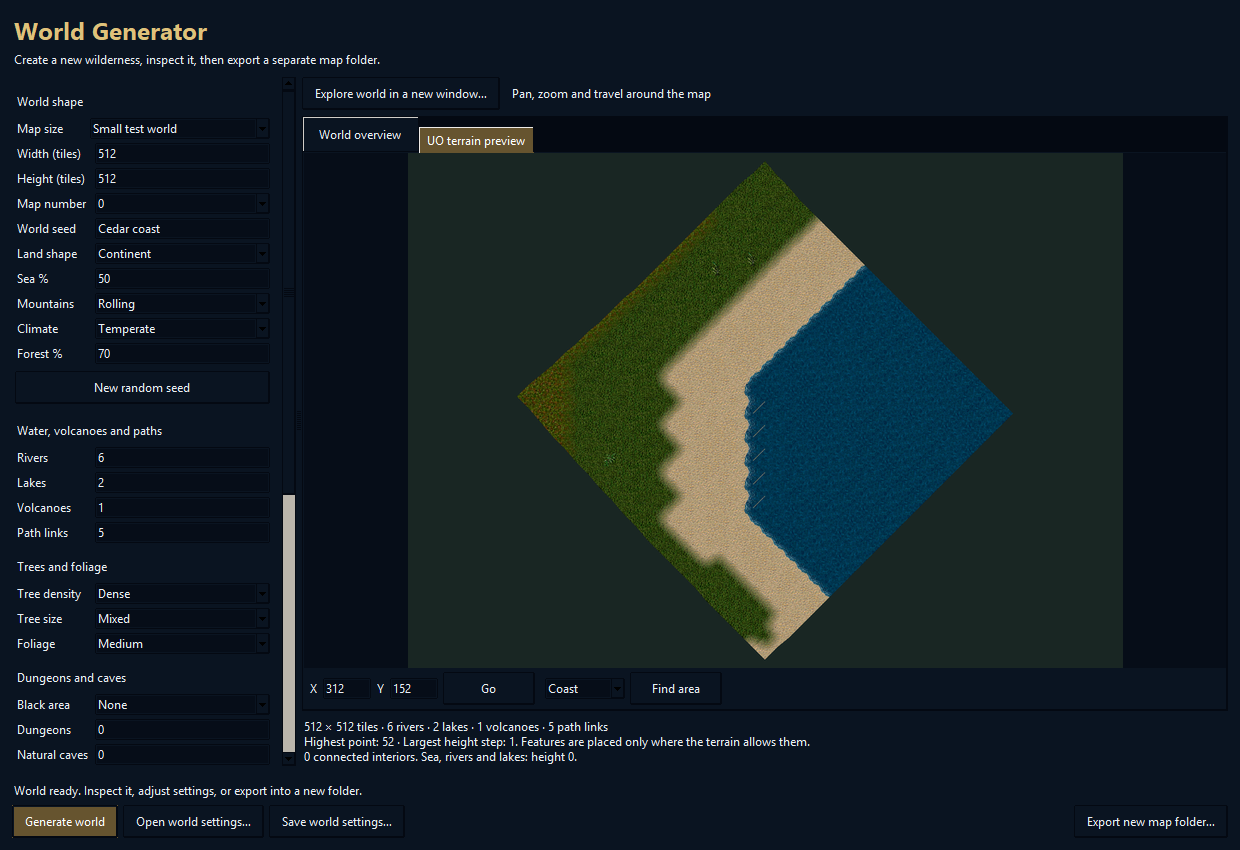
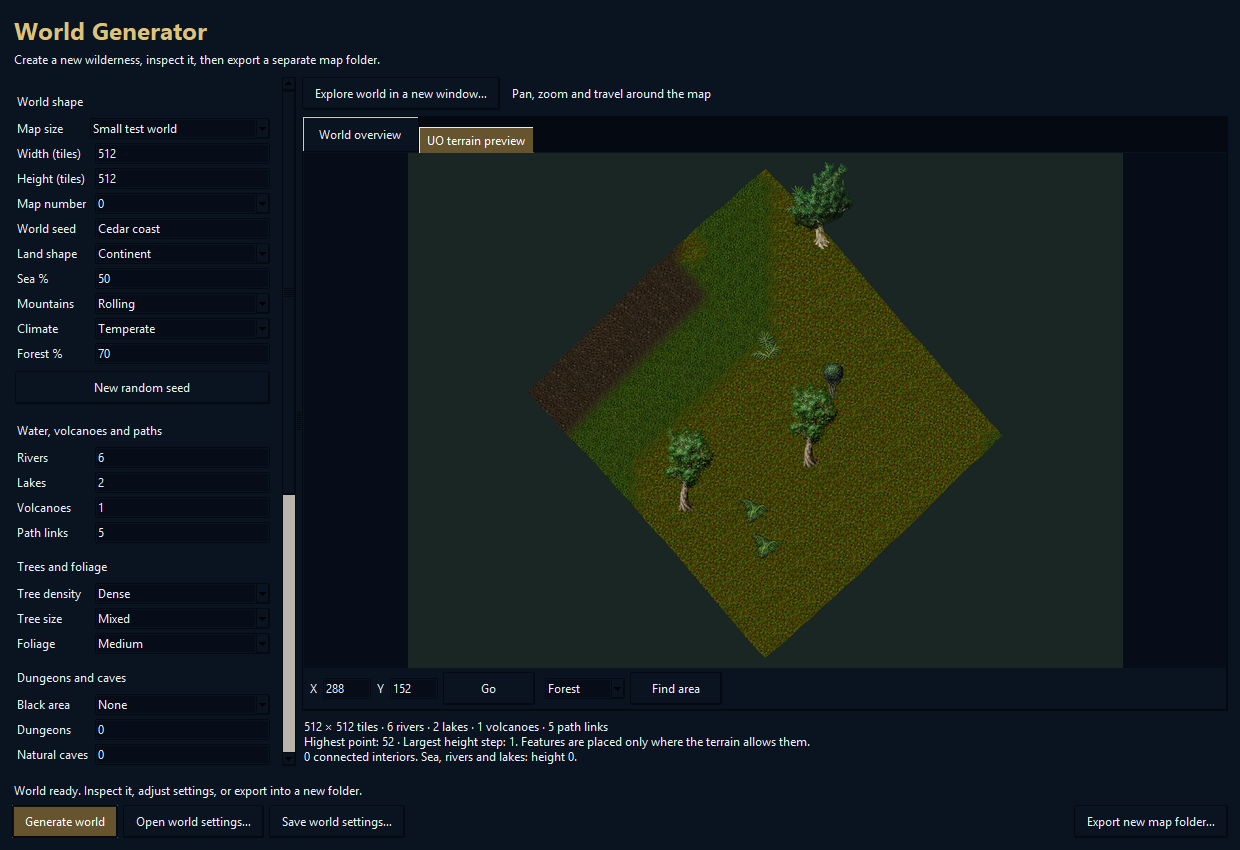
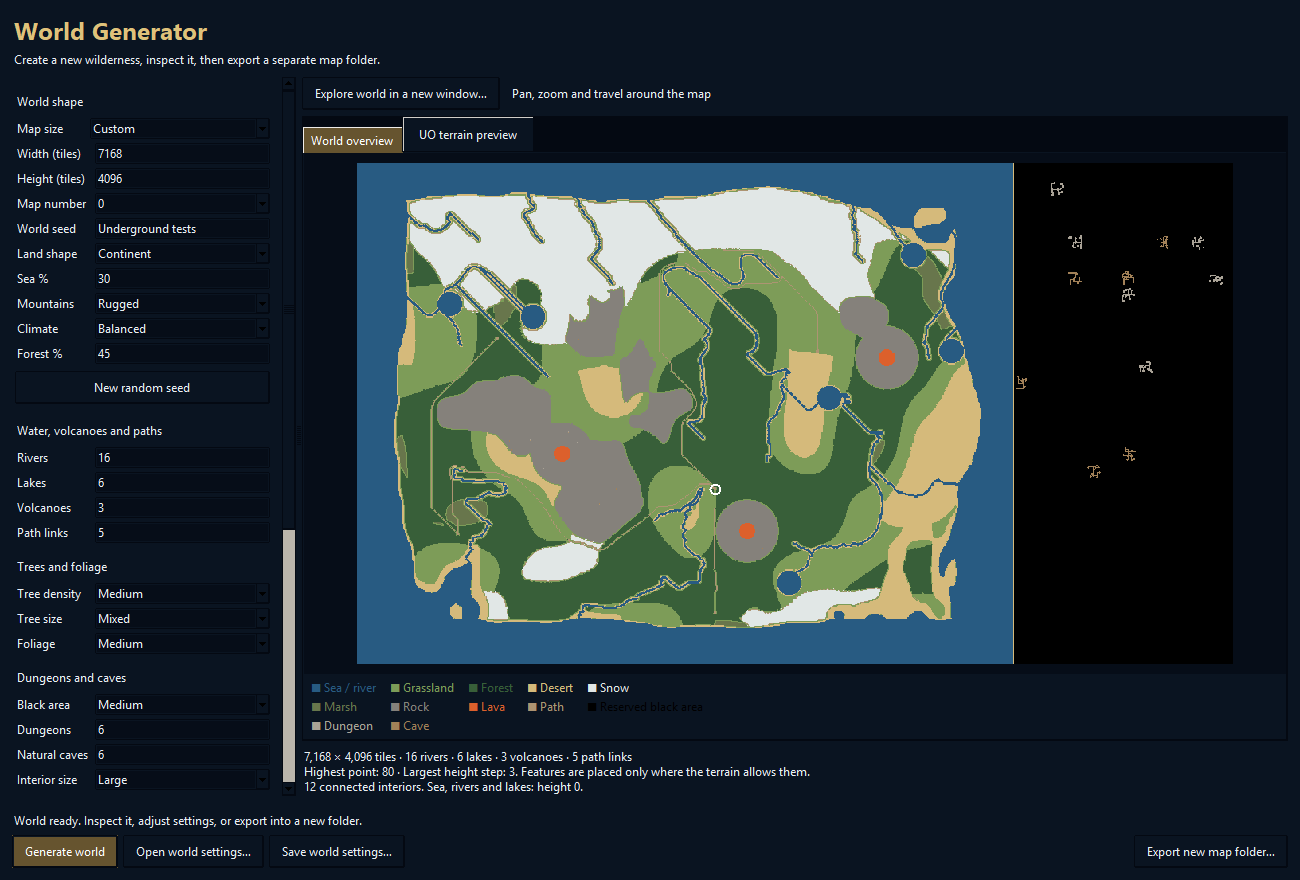
Choose a seed, dimensions, land shape and climate. Generate continents or islands with mountains, paths, rivers, lakes, deserts, snow and volcanoes. Choose tree size/density and foliage, and paint biome regions into the plan.
Terrain uses real native heights. Gentle, Rolling and Rugged settings bound elevations and adjacent steps; shores and entrances are graded, and all generated water remains level at Z=0.
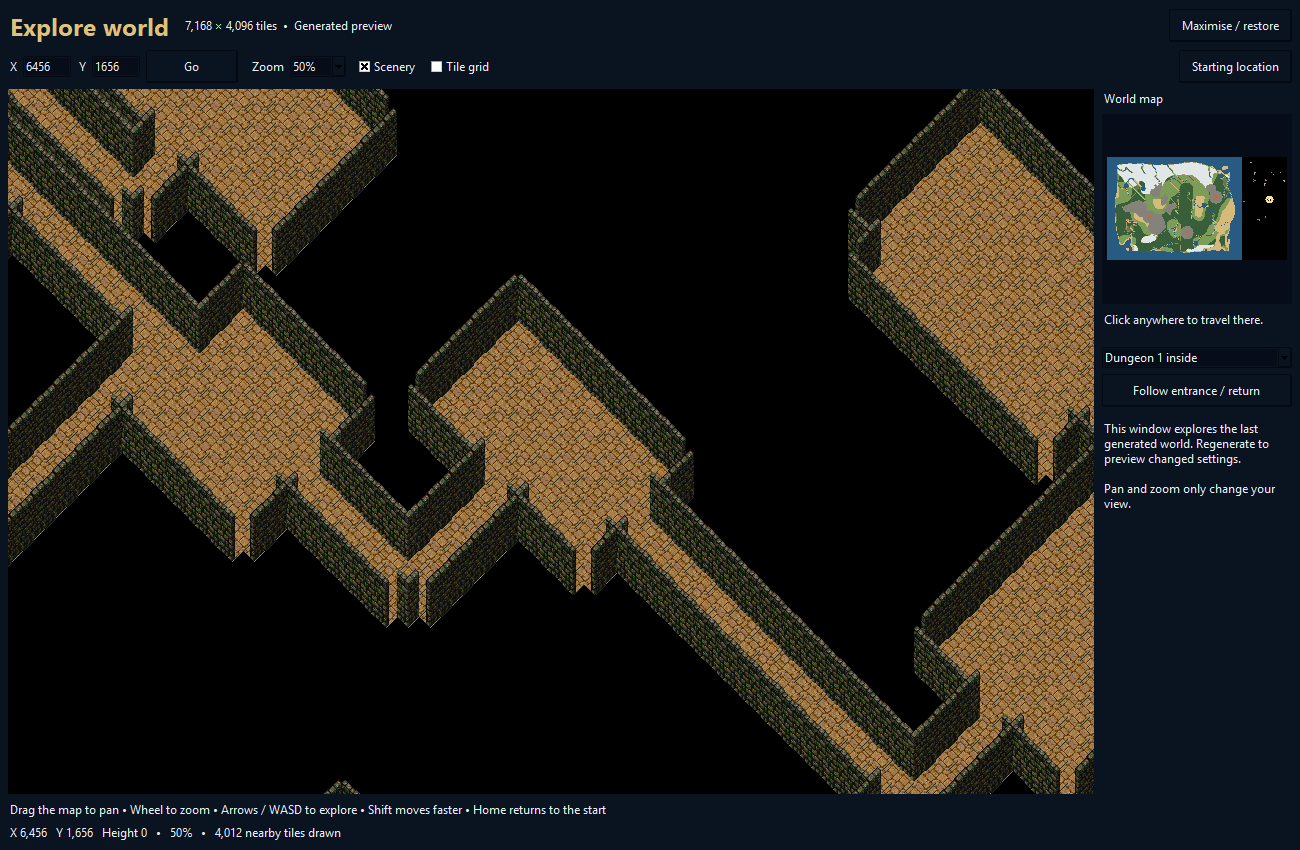
Reserve a black strip for off-world space. Generate connected dungeons and natural caves there, with outdoor entrances and paired return locations. Optional Sphere teleporter scripts are included with the separate export.
Open the World Explorer to pan, use wheel zoom, jump to features and follow entrance/return links. The generator exports a new map folder; it does not replace your live world or populate server regions, NPCs and loot.
08 / THE WORKBENCH
Inspect supported native gumps, import/export artwork and design Sphere dialogs with a visual preview and generated script.
Browse hue entries and compare how a color behaves on sample artwork before changing it.
Inspect body/action/direction combinations, preview frames and prepare compatible native animation imports and exports.
Convert supported art, gump, sound, map and explicit multi families into a new output folder. Animation archives and all metadata families are not interchangeable.
Edit definitions or whole files, search scripts, inspect references and keep generated scripts in appropriate folders.
Inspect occupied/free candidate slots, export artwork in batches and use the relevant workflow to review destinations and linked files.
09 / THE FINAL REVIEW
Workflows prepare a review of the affected client files and scripts. Queue supported changes, inspect pending work and save the linked operation together. Preflight checks run before saving and refuse busy or changed inputs where the file checks detect them.
Session checkpoints, the recovery center, backups and project comparisons help you understand what changed and resume interrupted work.
Content packs move supported prepared changes between projects. Bulk exports and converters write separate outputs. Related-content removal shows references and scope before deletion.
Use a working copy and keep backups. A file-access check cannot replace a shard-specific gameplay test, and the parser is not a complete Sphere execution engine.
Read the exact steps and format limits in the guide →YOUR NEXT UO PROJECT STARTS HERE
Artwork, animation, scripts, sound and worlds. One place to work.
v0.31.0 · Windows 10/11 x64 · 16.7 MB